2026-02-21 14:32
Status:
Tags:
Goals
I want to understand how Hermes Proxy works and document how to get it working in different common setups.
These are the scenarios I want to write local and remote access (port forwarding, Hamachi, and Radmin) guides for:
- Scenario 1: Windows machine running: Vanilla SPP server, 1.14 client, and Hermes Proxy.
- Scenario 2: Windows machine A running: Vanilla SPP server. Windows machine B running: 1.14 client and Hermes Proxy.
- Scenario 3: Windows machine running: Vanilla SPP server. Linux machine running: Hermes Proxy and 1.14 client.
- Scenario 4: Windows machine running: Vanilla SPP server and Hermes Proxy. Linux machine running: 1.14 client.
Scenario 1 Steps
- Have one Windows computer that you follow all these steps on.
- Install a fresh SPP Vanilla server and start it up.
- Create your account in the mangosd window.
- Have a fresh copy of the WoW Classic client (
1.14.0,1.14.1, or1.14.2). - Download the newest Hermes Proxy release for Windows from this link: https://github.com/WowLegacyCore/HermesProxy/releases
- Extract it anywhere.
- Open
HermesProxy.configand edit theClientBuildvalue to match your client version number shown a few lines above. For1.14.2for example, set it to42597. - Go to your game folder and edit this file
\_classic_era_\WTF\Config.wtf. - Find the
SET portalline, make it look like this:SET portal "127.0.0.1"and save the file.This ensures your game client will point to Hermes Proxy. - Download the latest version of the fully featured Arctium Launcher from here: https://arctium.io/wow/
- Extract it and move
Arctium Game Launcher.exeto yourWorld of Warcraftfolder (the one that has theDataand_classic_era_folders in it). - Go to where you extracted Hermes Proxy and run
HermesProxy.exeby double-clicking on it. - Run
Arctium Game Launcher.exeby double-clicking on it and accept the license agreement. Accept or decline the telemetry option and your WoW client should start after that. - You should be able to log in, select your server, create a character, and enter the world. In my case, I had to shut down my server and Hermes Proxy and start them back up (server, then Hermes Proxy) but I think that was a random issue.
- To shut down, close your game client, press ctrl-c in your Hermes Proxy window to stop it, then shut down your SPP server like normal.
Scenario 2 Steps
Windows Computer A
- Install a fresh SPP Vanilla server, set the IP address in the launcher, and start it up.
- Create your account in the mangosd window.
Windows Computer B
- Have a fresh copy of the WoW Classic client (
1.14.0,1.14.1, or1.14.2). - Download the newest Hermes Proxy release for Windows from this link: https://github.com/WowLegacyCore/HermesProxy/releases
- Extract it anywhere.
- Open
HermesProxy.configand edit theClientBuildvalue to match your client version number shown a few lines above. For1.14.2for example, set it to42597. - Also edit the
ServerAddressvalue to point to the IP address you configured on your SPP server. Save and close the config file. (Note: My SPP server address was set to my public IP address, but I was able to use my public IP address OR the server's LAN IP address in this step since I'm currently on the same LAN. I got 8ms latency with the public IP and 6ms with the LAN IP. If I left my LAN I'd have to use the public IP. Oh, and I'm using port forwarding). - Go to your game folder and edit this file
\_classic_era_\WTF\Config.wtf. - Find the
SET portalline, make it look like this:SET portal "127.0.0.1"and save the file. This ensures your game client will point to Hermes Proxy. - Download the latest version of the fully featured Arctium Launcher from here: https://arctium.io/wow/
- Extract it and move
Arctium Game Launcher.exeto yourWorld of Warcraftfolder (the one that has theDataand_classic_era_folders in it). - Go to where you extracted Hermes Proxy and run
HermesProxy.exeby double-clicking on it. - Run
Arctium Game Launcher.exeby double-clicking on it and accept the license agreement. Accept or decline the telemetry option and your WoW client should start after that. - You should be able to log in, select your server, create a character, and enter the world. In my case, I had to shut down my server and Hermes Proxy and start them back up (server, then Hermes Proxy) but I think that was a random issue.
- To shut down, close your game client, press ctrl-c in your Hermes Proxy window to stop it, then shut down your SPP server like normal.
Scenario 3 Steps
Windows Computer A
- Install a fresh SPP Vanilla server, set the IP address in the launcher, and start it up.
- Create your account in the mangosd window.
Linux Computer A
- Have a fresh copy of the WoW Classic client (
1.14.0,1.14.1, or1.14.2). - Download the latest version of the fully featured Arctium Launcher from here: https://arctium.io/wow/
- Extract it and move
Arctium Game Launcher.exeto yourWorld of Warcraftfolder (the one that has theDataand_classic_era_folders in it). - Add the game to Lutris with the "locally installed game" option, use GE-Proton as the runner, point the
Executablefield to yourArctium Game Launcher.exewithin your game folder. Point the Wine prefix to wherever you like. - Download the newest Hermes Proxy release for Ubuntu (this will also work on Arch and probably other distros) from this link: https://github.com/WowLegacyCore/HermesProxy/releases
- Extract it anywhere you want.
- Open
HermesProxy.configand edit theClientBuildvalue to match your client version number shown a few lines above. For1.14.2for example, set it to42597. - Also edit the
ServerAddressvalue to point to the IP address you configured on your SPP server. Save and close the config file. (Note: My SPP server address was set to my public IP address, but I was able to use my public IP address OR the server's LAN IP address in this step since I'm currently on the same LAN. I got 8ms latency with the public IP and 6ms with the LAN IP. If I left my LAN I'd have to use the public IP. Oh, and I'm using port forwarding). - Go to your game folder and edit this file
\_classic_era_\WTF\Config.wtf. - Find the
SET portalline, make it look like this:SET portal "127.0.0.1"and save the file. This ensures your game client will point to Hermes Proxy. - Open a terminal window and run
HermesProxy(point to where yourHermesProxylives):
./HermesProxy
- Start your game client in Lutris (note: there's a good chance nothing will happen the first time if the Wine prefix isn't build yet. Just start it again if it fails).
- The game client should open. Then, you should be able to log in, select your server, create a character, and enter the world.
- To shut down, close your game client, press ctrl-c in your Hermes Proxy window to stop it, then shut down your SPP server like normal.
Extra notes from this scenario (ignore this if you're good to go):
- If you try to start Arctium from Lutris and it does nothing, first try to just start it again (it likely failed the first time due needing to build the Wine prefix while also wanting you to accept the license agreement). If it still doesn't work, try switching your Lutris executable path to point to
WoWClassic.exe, run it to build the Wine prefix, then close it, and switch it back to point to Arctium and it should run normally. - If you try to run Hermes Proxy and WoW from Lutris using the same Wine prefix, only one will be able to run at a time (at least in my case).
- If you try to run Hermes Proxy and WoW in separate Wine prefixes within Lutris, you will see this error in the Hermes Proxy window when you try to log in (I think it's a .NET issue. Rather than try to fix this I just switched to running the Ubuntu version natively on Arch):
18:49:04 |  Server  | Server          | Starting Hermes Proxy...
18:49:04 |  Server  | Server          | Version 2023-10-19 *official* 3.10.0
18:49:04 |  Server  | Server          | Modern (Client) Build: V1_14_2_42597
18:49:04 |  Server  | Server          | Legacy (Server) Build: V1_12_1_5875
18:49:04 |  Storage | GameData        | Loading data files...
18:49:04 |  Server  | VersionChecker  | Loaded 833 legacy opcodes.
18:49:04 |  Server  | VersionChecker  | Loaded 1727 modern opcodes.
18:49:06 |  Storage | GameData        | Finished loading data.
18:49:06 |  Network | Server          | External IP: 127.0.0.1
18:49:06 |  Server  | Server          | Starting BnetTcpSession service on 127.0
.0.1:1119...
18:49:06 |  Network | NetworkThread   | Network Thread Starting
18:49:06 |  Server  | Server          | Starting BnetRestApiSession service on 1
27.0.0.1:8081...
18:49:06 |  Network | NetworkThread   | Network Thread Starting
18:49:06 |  Server  | Server          | Starting RealmSocket service on 127.0.0.
1:8084...
18:49:06 |  Network | NetworkThread   | Network Thread Starting
18:49:06 |  Server  | Server          | Starting WorldSocket service on 127.0.0.
1:8086...
18:49:06 |  Network | NetworkThread   | Network Thread Starting
18:49:27 |  Server  | BnetTcpSession  | Accepting connection from 127.0.0.1:3464
8.
18:49:27 |  Error   | SocketManager   | System.TypeInitializationException: The
type initializer for 'BNetServer.BnetServerCertificate' threw an exception.
 ---> System.Security.Cryptography.CryptographicException: PKCS12 (PFX) without
a supplied password has exceeded maximum allowed iterations. See https://go.micr
osoft.com/fwlink/?linkid=2233907 for more information.
 ---> Internal.Cryptography.CryptoThrowHelper+WindowsCryptographicException: Unk
nown error (0xc1000002)
   at Internal.NativeCrypto.Cng.BCryptOpenAlgorithmProvider(String , String , Op
enAlgorithmProviderFlags )
   at Internal.Cryptography.RC2BCryptModes.OpenRC2Algorithm(String , Int32 )
   at Internal.Cryptography.RC2BCryptModes.GetHandle(CipherMode , Int32 )
   at Internal.Cryptography.RC2Implementation.CreateTransformCore(CipherMode , P
addingMode , Byte[] , Int32 , Byte[] , Int32 , Int32 , Int32 , Boolean )
   at Internal.Cryptography.RC2Implementation.CreateTransform(Byte[] , Byte[] ,
Boolean )
   at Internal.Cryptography.RC2Implementation.CreateDecryptor(Byte[] , Byte[] )
   at System.Security.Cryptography.PasswordBasedEncryption.Decrypt(SymmetricAlgo
rithm , ReadOnlySpan`1 , ReadOnlySpan`1 , ReadOnlySpan`1 , Span`1 )
   at System.Security.Cryptography.PasswordBasedEncryption.Pkcs12PbeDecrypt(Algo
rithmIdentifierAsn , ReadOnlySpan`1 , HashAlgorithmName , SymmetricAlgorithm , R
eadOnlySpan`1 , Span`1 )
   at System.Security.Cryptography.PasswordBasedEncryption.Decrypt(AlgorithmIden
tifierAsn& , ReadOnlySpan`1 , ReadOnlySpan`1 , ReadOnlySpan`1 , Span`1 )
   at System.Security.Cryptography.Asn1.Pkcs12.PfxAsn.DecryptContentInfo(Content
InfoAsn , UInt32& )
   at System.Security.Cryptography.Asn1.Pkcs12.PfxAsn.CountTotalIterations()
   at System.Security.Cryptography.X509Certificates.X509Certificate.GetIteration
Count(ReadOnlySpan`1 )
   at System.Security.Cryptography.X509Certificates.X509Certificate.EnforceItera
tionCountLimit(ReadOnlySpan`1 , Boolean , Boolean )
   --- End of inner exception stack trace ---
   at System.Security.Cryptography.X509Certificates.X509Certificate.EnforceItera
tionCountLimit(ReadOnlySpan`1 , Boolean , Boolean )
   at Internal.Cryptography.Pal.CertificatePal.FromBlobOrFile(ReadOnlySpan`1 , S
tring , SafePasswordHandle , X509KeyStorageFlags )
   at Internal.Cryptography.Pal.CertificatePal.FromBlob(ReadOnlySpan`1 , SafePas
swordHandle , X509KeyStorageFlags )
   at System.Security.Cryptography.X509Certificates.X509Certificate..ctor(ReadOn
lySpan`1 )
   at System.Security.Cryptography.X509Certificates.X509Certificate..ctor(Byte[]
 )
   at System.Security.Cryptography.X509Certificates.X509Certificate2..ctor(Byte[
] )
   at BNetServer.BnetServerCertificate..cctor()
   --- End of inner exception stack trace ---
   at BNetServer.BnetServerCertificate.get_Certificate()
   at BNetServer.Networking.BnetTcpSession.Accept()
   at Framework.Networking.SocketManager`1.OnSocketOpen(Socket sock) in D:\a\Her
mesProxy\Framework\Networking\SocketManager.cs:line 84
Scenario 4
Windows Computer A
- Install a fresh SPP Vanilla server, set the IP address in the launcher to your public IP address or LAN IP address (if you only want to play on LAN), and start it up.
- Create your account in the mangosd window.
- Download the newest Hermes Proxy release for Windows from this link: https://github.com/WowLegacyCore/HermesProxy/releases
- Extract it anywhere.
- Open
HermesProxy.configand edit theClientBuildvalue to match your client version number shown a few lines above. For1.14.2for example, set it to42597. - Also edit the
ExternalAddressvalue to point to the LAN IP address of the SPP server (or the public IP address if you want remote clients to be able to connect to Hermes Proxy) Save and close the config file. - Run
HermesProxy.exeby double-clicking on it.
Linux Computer A
- Have a fresh copy of the WoW Classic client (
1.14.0,1.14.1, or1.14.2). - Download the latest version of the fully featured Arctium Launcher from here: https://arctium.io/wow/
- Extract it and move
Arctium Game Launcher.exeto yourWorld of Warcraftfolder (the one that has theDataand_classic_era_folders in it). - Add the game to Lutris with the "locally installed game" option, use GE-Proton as the runner, point the
Executablefield to yourArctium Game Launcher.exewithin your game folder. Point the Wine prefix to wherever you like. - Go to your game folder and edit this file
\_classic_era_\WTF\Config.wtf. - Find the
SET portalline, make it look like this:SET portal "192.168.1.212"where the IP address is the LAN IP of the computer Hermes Proxy is running on (or use the public IP of the server if you're remote and have opened ports). Save the file. This ensures your game client will point to Hermes Proxy. - Start your game client in Lutris (note: there's a good chance nothing will happen the first time if the Wine prefix isn't built yet. Just start it again if it fails). Do the license agreement and accept or decline the telemetry.
- The game client should open. Then, you should be able to log in, select your server, create a character, and enter the world.
- To shut down, close your game client, then go to your server, press ctrl-c in your Hermes Proxy window to stop it, then shut down your SPP server like normal.
Extra notes from this scenario (ignore this if you're good to go):
- In this scenario, if your SPP server address is set to 127.0.0.1, you'll still be able to connect to the server on LAN (at least in my case. I've heard of some people not being able to do this and instead having to set the SPP server address to its private IP). Remote clients won't be able to connect even if they point their clients to the public IP of the server and port-forwarding is enabled. Even if you set the Hermes
ExternalAddressto the public IP address of the server it won't allow remote users (using the 1.14.x client, 1.12 clients will be fine) to connect this way. For remote users to connect, you need to set both the SPP server and HermesExternalAddressto the public IP address of the server. - Basically, the IP configured on the SPP server itself is what is going to get handed to the client after it authenticates with realmd. Somehow, keeping the SPP server at 127.0.0.1 and setting my other LAN PC to the server's LAN IP does work for me, but other than that, after a remote user logs in, they will get handed whatever IP address and port is configured on the SPP server, so if it's a LAN IP it will not work (assuming no VPN), that's why you must have the public IP assigned to the server if remote users will be connecting.
- Actually, I set the public IP address on both the SPP server and Hermes
ExternalAddressand it still didn't work. It just gets stuck on the "Connecting" phase. I think it's because Hermes uses different ports than the SPP server (and it should) for realmd and mangos (and it also has ports for BNet and REST). 1.12 users will be able to connect remotely via the port-forwarding rules that forward ports 8085 and 3724 to the server's LAN address. 1.14.x users are looking to connect to the Hermes Proxy, so I need to forward the port(s) that Hermes uses for those users. Because of this, 1.14 players will have to specify the port I choose in theirConfig.wtfso that it doesn't use the default port (ended up not needing to specify this port, so you can likely ignore this). - After adding the four additional port-forwarding rules to the firewall from the port-forwarding section below, I was able to connect remotely to the Hermes Proxy and get in-game:
- I first tried only forwarding the BNet port and that didn't work. Then, I forwarded all but the REST one since it seemed like it would be the most optional one and I was not able to connect, so I'm guessing all four are necessary.
- I took the 1119 out of my
Config.wtfand was still able to connect, so think Arctium knows to point to 1119 by default...Yep, I used OBS Studio to capture the Arctium console output at start-up before it disappears and it does point to 1119 by default. - I tested a 1.12 client in this setup and it was still able to connect remotely like normal by pointing its
realmlist.wtffile to the public IP address of the SPP server. - In this scenario, if you keep your SPP server set to 127.0.0.1 and try to connect to the server remotely, 1.12 users will log in/authenticate fine but will not be able to get to the world server (stuck on the screen showing them how many characters they have on the realm). 1.14 users will be able to connect like normal and play. I guess it's because 1.14 users only need to be able to talk to the Hermes Proxy, which they can, and Hermes Proxy is pointed to the SPP server (127.0.0.1), so the path is complete.
- In this scenario, if you set your SPP server to its LAN IP and try to connect to the server remotely, 1.12 users will log in/authenticate fine but will not be able to get to the world server (stuck on the screen showing them how many characters they have on the realm). 1.14 users will be able to connect like normal and play.
- I also tested a user running Hermes Proxy client-side remotely in this scenario and it works fine. It works on LAN too. So, you can have Hermes proxy running server-side and/or client-side and it won't matter which one 1.14 users point their clients to. Meanwhile, 1.12 clients can still connect like they always have, both on LAN and remotely.
Port-Forwarding
Note
Port-forwarding is only required if you want users outside of your LAN to be able to connect to your server without using a VPN.
For all of the cases above where I tested connecting to the server remotely, it was assumed that port-forwarding was already configured on the router. Traditionally, you would configure these two rules pointed at the private/LAN IP address of the computer running the SPP server:
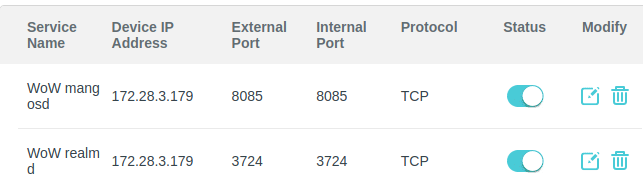
realmd handles authentication/login and mangosd handles the world server.
Those two rules allow for users with the Vanilla 1.12 client (or users who are using Hermes Proxy client-side) to connect to your server remotely. If you're running Hermes Proxy server-side and want 1.14 users to be able to connect to your server remotely, you should add these four rules as well (ignore the fact that my IP address is different than it was before):
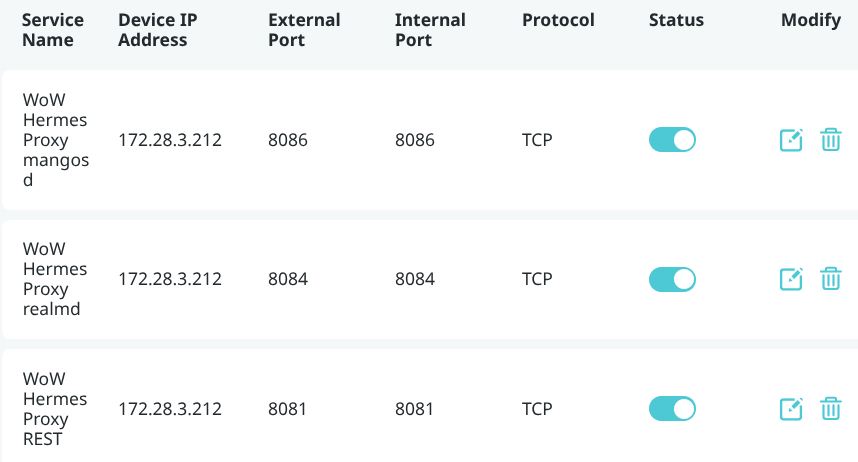

You'll want all six rules in place if you want both 1.12 and 1.14 clients to be able to connect to your server remotely (and you're running Hermes Proxy server-side).
A couple additional tests I did (feel free to ignore this)
Test 1...
- SPP server IP set to: 127.0.0.1
- Server instance of Hermes: External IP address set to: public IP
- Client instance of Hermes: External: IP address set to: public IP
- Client WTF: pointed to public IP Hermes works fine.
- Client WTF: pointed to loopback IP Hermes goes into connection loop
Test 2...
- SPP server IP set to: 172.28.3.212
- Server instance of Hermes: External IP address set to: public IP
- Client instance of Hermes: External IP address set to: public IP
- Client WTF: pointed to public IP Hermes works fine.
- Client WTF: pointed to loopback IP Hermes -> You can log in and be presented with realm list, but clicking the realm just shows "Logging in to game server" and I think eventually disconnects.
- 1.12: You can log in but get stuck when trying to access the world server..."Logging in to game server".
It works perfectly fine once I point the SPP server to the public IP address (with Hermes running on both sides I can point to either one in my .wtf file and it works).
What if I don't want to port-forward?
If you are unable to or don't want to forward ports on your router but still want users outside of your LAN to be able to connect to your SPP server, you can use a VPN instead. The two most common options are Radmin VPN and Hamachi. Guides for each are written below. You only need to follow one of them.
Note
Radmin VPN is reportedly faster than Hamachi and doesn't require registration like Hamachi does.
Radmin VPN
(Recommended) Scenario: Remote clients connect using Radmin VPN, LAN clients connect without Radmin VPN
Note
This configuration is recommended since it allows LAN clients to play with much lower latency since they don't have to use the VPN connection.
On Your Windows Server
- Download Radmin VPN from this link: https://www.radmin-vpn.com/
- Run it.
- Click "Create Network".
- Enter a name for your Radmin VPN network and create a password for it. Other users will need this name and password to connect to your Radmin VPN network.
- Set your SPP server to use the Radmin VPN IP address.
- Connect to your MySQL server using DBeaver (can use whatever tool you want). Check your SPP launcher for connection details under
4 - Server Info. - Navigate to
Databases>classicrealmd>Tables>realmlist, click on it, and click the "Data" tab. - You should see your one Vanilla realm there with the Radmin VPN IP address.
- Right-click on it, edit it, and add a new row. Copy every column to be like the first one, except change the
idto the next available number, set thenameto something likeVanilla Realm - LANso people will know which one is the LAN one, and set theaddressto the server's LAN IP address. - This one probably isn't necessary, but I did it: Add another new row for one called something like
Vanilla Realm - Localhostand set the IP to127.0.0.1. Change theidto the next available number and copy the rest. - Save and apply the changes. Close out of DBeaver.
On Your Remote Windows Clients
Note
Linux clients can only connect to your server via LAN since they can't use Radmin VPN natively (and I had issues getting it running through Wine).
- Download Radmin VPN from this link: https://www.radmin-vpn.com/
- Run it.
- Click "Join Network" (it should then open to the "Private Network" tab by default).
- Enter the name and password you created before and click "Join".
- Open your
\_classic_era_\WTF\Config.wtfand point it to the Hermes Proxy external IP address (whether it's running client-side or server-side). - Ensure that Hermes Proxy's
ServerAddressis pointing to the SPP server address (this can be127.0.0.1if running server-side or the LAN IP even if it's on the same LAN, even if the SPP server address is set to the server's Radmin VPN address) and theExternalAddressis pointed to127.0.0.1if running on the same machine as the client, LAN IP if clients are running on LAN (and you don't need remote users to connect to it), or the server's Radmin VPN IP if remote users will be connecting to Hermes Proxy.
On Your LAN Clients
These would just run the 1.12 or 1.14 client normally and point to the SPP server address (if 1.12) or Hermes Address (if 1.14).
Extra notes from this scenario (ignore this if you're good to go):
- Hermes Proxy server-side in this setup will only be able to serve LAN users or Radmin VPN users.
- It seems that your aren't presented with an option to select a realm when logging in each time. Maybe if it sees you can only reach one it won't bother presenting the other.
- Hmm, I'm unable to connect to this server on LAN when running Hermes Proxy locally. It presents me both realms but shows the LAN one offline. Oh, it's because the SPP server LAN realm (realm ID 2 for me) would actually need to be set to 127.0.0.1 if running Hermes Proxy on the same machine. It really all comes down to understanding that hand-off rule from realmd. And the Hermes emulation concept I guess...Hmm, I went and created the Localhost realm and tried to connect again and it actually connected to the LAN one this time, so maybe it was just a temp issue and the localhost realm isn't necessary.
- I could connect...: on LAN while running Hermes Proxy locally, on LAN while running Hermes Proxy server-side (external address set to LAN), remotely while running Hermes Proxy locally, remotely while running Hermes Proxy server-side (external address set to Radmin VPN address).
Scenario: All clients connect using Radmin VPN
Note
This configuration is simpler but requires LAN users to connect through the VPN, which causes latency. This can be a good configuration if clients will be connecting remotely or LAN users don't mind the extra latency.
On Your Windows Server
- Download Radmin VPN from this link: https://www.radmin-vpn.com/
- Run it.
- Click "Create Network".
- Enter a name for your Radmin VPN network and create a password for it. Other users will need this name and password to connect to your Radmin VPN network.
- Set your SPP server to use the Radmin VPN IP address.
On Your Windows Clients
- Download Radmin VPN from this link: https://www.radmin-vpn.com/
- Run it.
- Click "Join Network" (it should then open to the "Private Network" tab by default).
- Enter the name and password you created before and click "Join".
- Open your
\_classic_era_\WTF\Config.wtfand point it to the Hermes Proxy external IP address (whether it's running client-side or server-side). - Ensure that Hermes Proxy's
ServerAddressis pointing to the SPP server address (this can be127.0.0.1if running server-side or the LAN IP even if it's on the same LAN, even if the SPP server address is set to the server's Radmin VPN address) and theExternalAddressis pointed to127.0.0.1if running on the same machine as the client, LAN IP if clients are running on LAN (and you don't need remote users to connect to it), or the server's Radmin VPN IP if remote users will be connecting to Hermes Proxy.
- Basically, it comes down to that same old rule where the client is going to be handed whatever is configured on the SPP server, so if it is set to use the Radmin VPN IP, the client needs to be on that Radmin VPN network to be able to connect to it. And Hermes Proxy is just the middle-man, so it needs to be able to reach both the client and the server. Clients need to be able to reach Hermes Proxy and then the SPP address.
Extra thing to check if it's not working yet...
- Ensure your
BindIPis set to0.0.0.0instead of127.0.0.1in yourmangosd.confandrealmd.conffiles. It should be like that by default, but it's worth checking.
Hamachi
Not yet tested...
Additional Information and Things Learned
- From the Hermes Proxy GitHub page, this is a great explanation of what Hermes Proxy does:
There are 4 major components to the application:

- The modern BNetServer to which the client initially logs into.
- The legacy AuthClient which will in turn login to the remote authentication server (realmd).
- The modern WorldServer to which the game client will connect once a realm has been selected.
- The legacy WorldClient which communicates with the remote world server (mangosd).
The page also says Hermes Proxy supports 1.14.0 to 1.12.1 and 2.5.2 to 2.4.3. So Vanilla and TBC, basically. Also, it seems that the 1.14.2 client also works based on what people are saying online. And now that I'm looking at HermesProxy.config it lists 1.14.0, 1.14.1, 1.14.2, 2.5.2, and 2.5.3, so I'm guessing all those versions of the client are supported.
The page also says it requires the Arctium Launcher, and everything I read about Hermes Proxy on Discord and Reddit suggests the same thing.
- Celguar has his own fork of Hermes Proxy, but the original Hermes Proxy has a newer release, so I'll just use that one.
- You can exit the game and restart it without having to restart Hermes Proxy.
- If Hermes Proxy isn't started, you launch the game with Arctium, and try to log in, your connection will fail with this error regardless of the credentials you enter:
You have been disconnected. (BLZ51901016)
- I've seen someone write that you should run Hermes Proxy and Arctium both as administrator to avoid some weirdness in-game such as your quest progress not tracking correctly. I tried running both as admin and it seems to work fine, so maybe that's the best way to run it.
- Throughout all my testing, I learned that you can basically have it all: Hermes Proxy can run on both server and client at the same time without issue, and users on 1.12 and 1.14 clients can connect on LAN or remotely via port forwarding. Also, both clients and Hermes Proxy works on both Windows and Linux.
- If you're running Hermes Proxy server-side and have the proxy config's external address set to the public IP address, if you're playing on LAN, you can point your client to the Hermes Proxy LAN IP address and it will work. The behavior is basically the same as with the SPP server.
- How does server-side Hermes Proxy handle multiple clients connecting through it? Answer: I did a couple tests. It works fine with two LAN clients connecting to the LAN address. And it also works fine when I have one client connecting over LAN and a second client connecting remotely via port-forwarding.
- It should be possible to have Hermes Proxy running on a third computer that isn't the client or the server.
Remaining questions
- Can I run the 1.14 client without Arctium if I am running Hermes Proxy server-side and set my
Config.wtfto point to the IP of the server followed by the port 1119? Hmm, it seems it doesn't work. When I point Lutris straight toWoWClassic.exewithout editingConfig.wtfit instantly fails to connect when I try to log in. If I add:1119to theConfig.wtf, it still fails the same way but I do see in the Hermes Proxy window that it accepted the BNet connection (I think it even did this when I didn't add:1119.