2025-11-06 5:30:16 PM
Status:
Tags:
Note
Follow this guide if you want to play on any server (Hi-Rez, community, or private). You will not have any moderation ability on any servers since you won't have TAMods enabled. This is the "vanilla" Tribes: Ascend experience provided by Hi-Rez.
Arch Linux
Pre-requisites
- Have the Parting Gifts version of the Tribes: Ascend client (this is the final version released by Hi-Rez).
- Have Lutris installed (you don't have to use Lutris but this guide will assume you do).
Installation
- Create a directory called where you want your Wine configuration to live. For me, I did this:
cd ~/Games/Lutris/
mkdir Tribes\ -\ Ascend
- Extract your Parting Gifts game client to wherever you want it to live. I have mine living here:
/home/adman/Games/Tribes - Ascend/Tribes_Ascend_Parting_Gifts - Open Lutris and add a new game with the
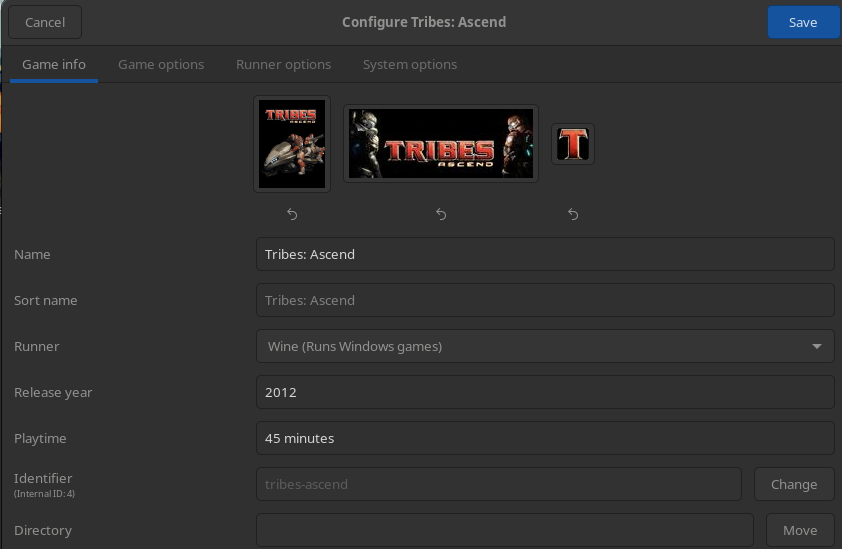
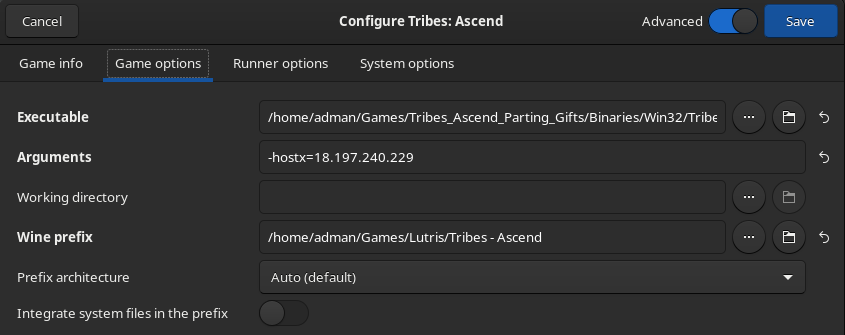
Add locally installed gameoption. - Name it, set the runner to Wine, provide your Wine prefix location, and point it to the
TribesAscend.exe, which I found here:/home/adman/Games/Tribes - Ascend/Tribes_Ascend_Parting_Gifts/Binaries/Win32/TribesAscend.exe - In the
Argumentsfield, enter-hostx=18.197.240.229, which is the public IP address of the current mainstream community login server (ta.kfk4ever.com), like this: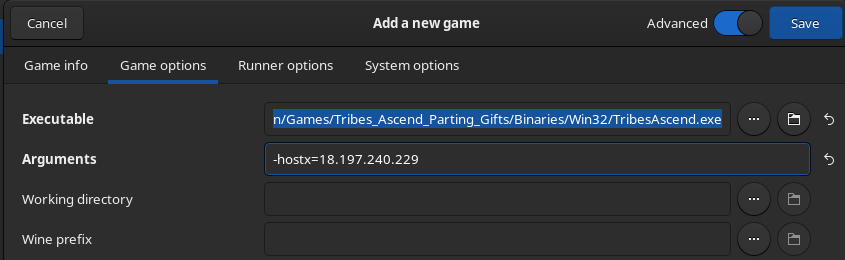
Note
To play on official servers, you would just not add the -hostx= bit since it defaults to Hi-Rez servers if you don't add it. If you want to connect to a different login server, feel free to enter whatever address you like.
- At this point, I opened the game and got a black screen with the music. OBS could see the game fine though. By following these directions, I could see the game in windowed mode but that wasn't satisfactory:
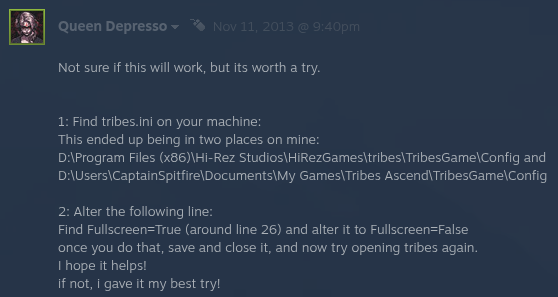
Forcing x11 and various other troubleshooting methods didn't work either, so I'll just run borderless fullscreen instead by opening this file (the tribes.ini in the other directory from the screenshot above is the default config that you should leave alone I think):
nano "~/Games/Lutris/Tribes - Ascend/drive_c/users/adman/Documents/My Games/Tribes Ascend/TribesGame/Config/tribes.ini"
And changing these lines to look like this:
Fullscreen=False
Borderless=true
Note
Start the game once to generate the Wine prefix/config.
You can log in using any username or password. The username just needs to meet a certain minimum length and the password needs to be at least one character. You can have it remember whatever you type in, but you can change it and it will still log in fine. This means other people could impersonate you and vice versa unless you go through the verification process with an email address, which I won't cover here.
From there you can change your resolution and any other settings you'd like and play the game.
Note
I was actually able to switch to full screen after having been in game and playing for a bit. Maybe it was just a matter of getting in there and making my resolution 1440p...Yep, I think that was it because when I changed my resolution down to 1080p while in fullscreen it went black again. Changing it back to 1440p didn't bring it back, but switching to borderless did. Then from there I could go back to fullscreen. I'm just keeping it on borderless though since I'm afraid the fullscreen black issue might pop up in a crucial moment and borderless performance seems exactly the same.
Note
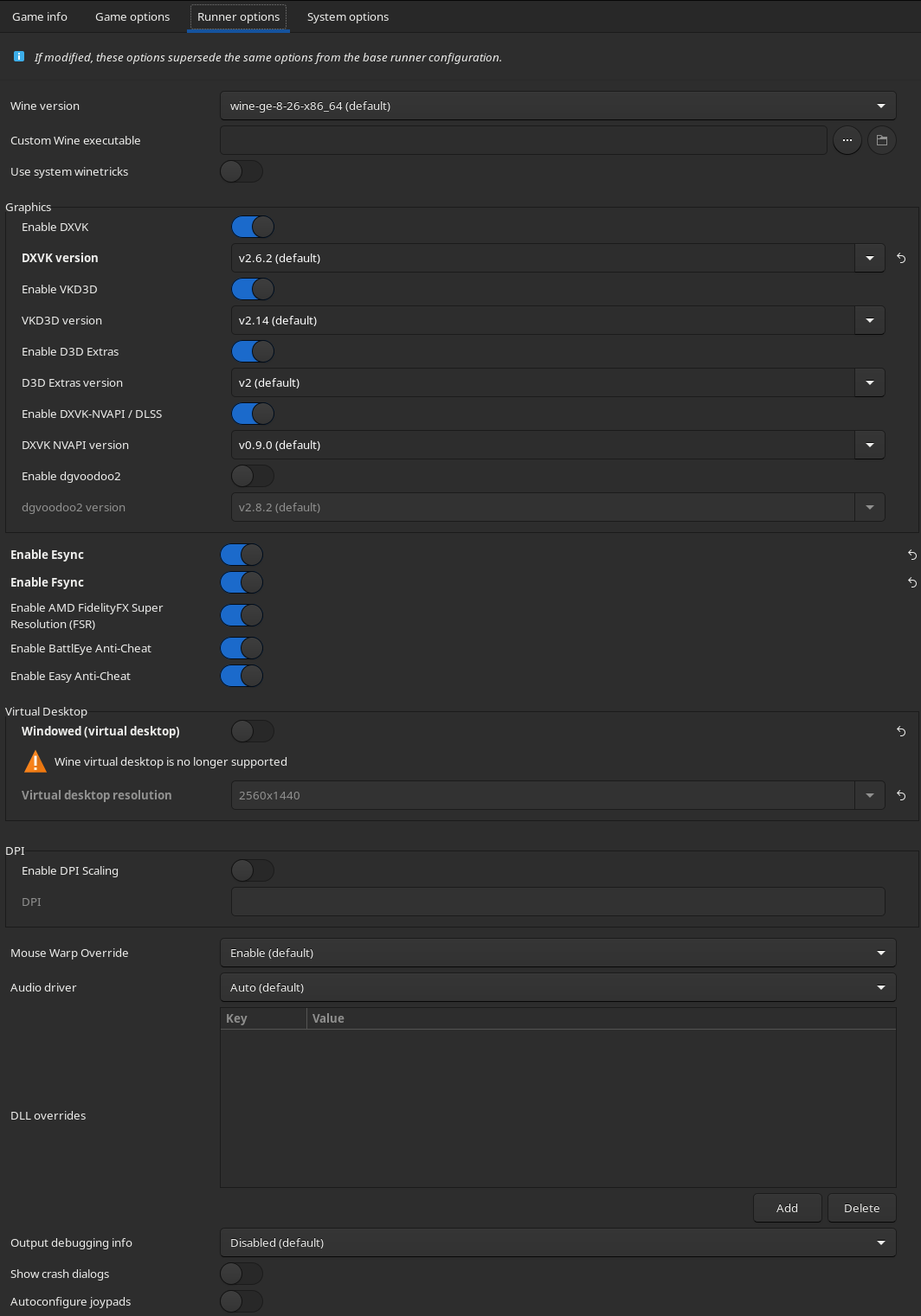
If your FPS appears to be floating somewhere between 40-60 and you're expecting 120, make sure that Esync and Fsync are both enabled in the Lutris runner options menu.
Lutris configuration just in case
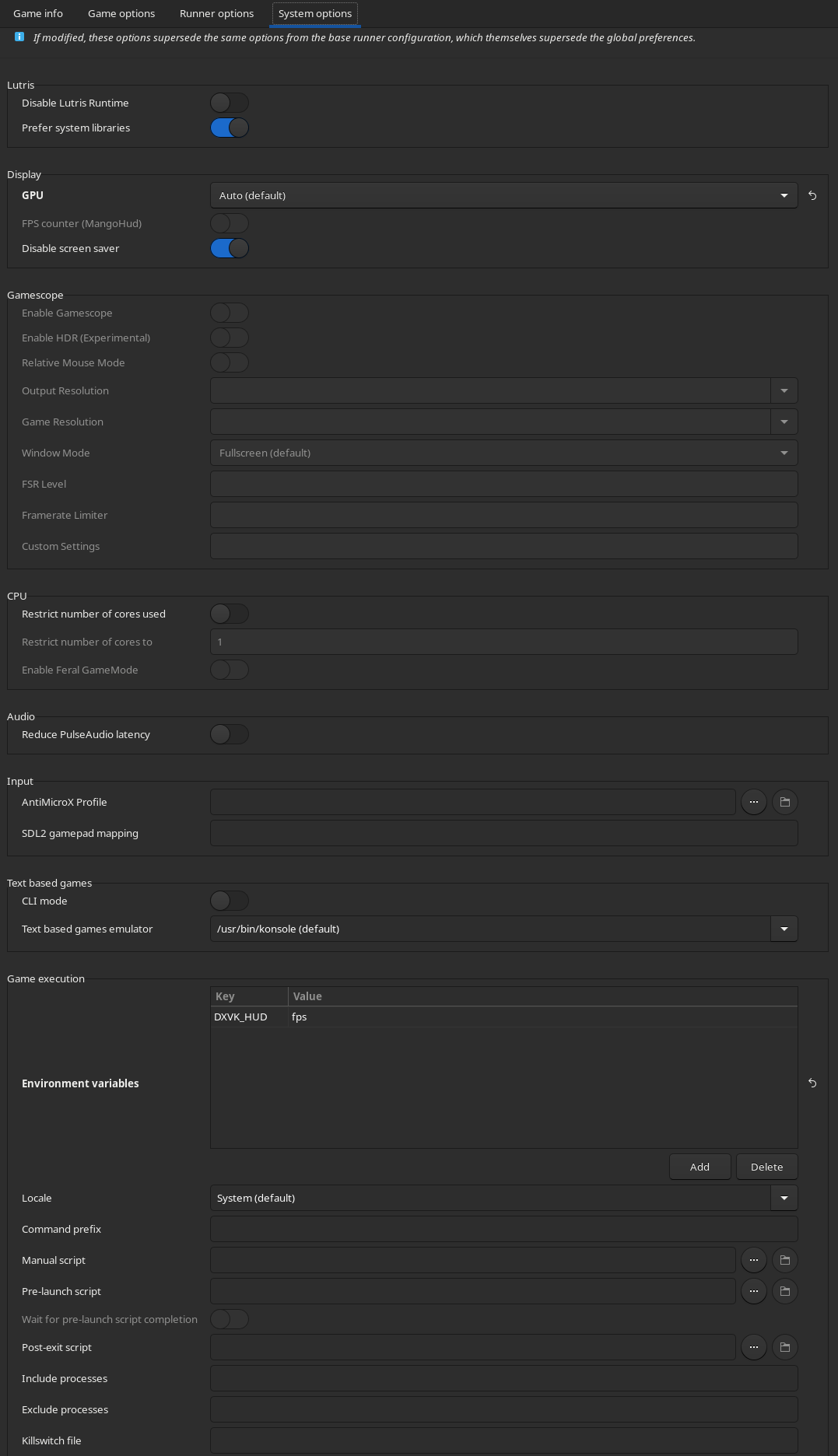
Here are screenshots of my Lutris settings for the game just in case things change in the future: